
How to Add an Email Signature in Gmail (Desktop + Mobile Guide)
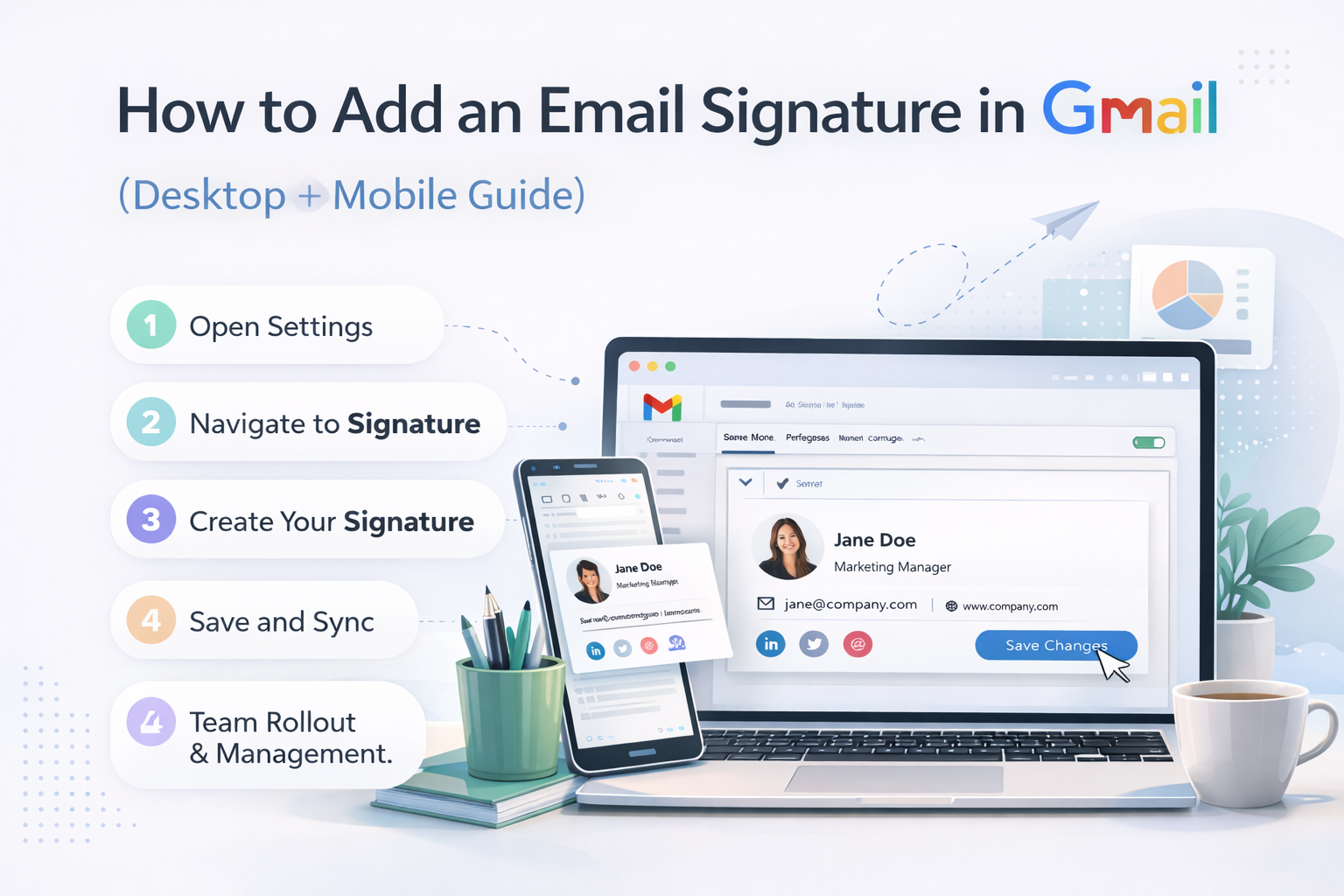
Whether you're setting up your first Gmail signature or adding an HTML design with your company logo, this guide covers every method — desktop, Android, iPhone, and advanced options — with screenshots described at each step.
Need a signature to add?
Create a free, professional HTML email signature at EmailSignatures.ai — then follow the steps below to add it to Gmail in minutes.
Why Add a Signature to Gmail?
A Gmail signature is automatically appended to every email you send, so every outgoing message carries your contact details without any extra effort. Beyond the obvious convenience, a well-designed Gmail signature:
- Builds instant credibility — recipients see your title, company, and contact details at a glance
- Saves time — no manually typing out your phone number or website in every email
- Drives action — a CTA link (booking page, portfolio, download) works 24/7 from your inbox
- Reinforces brand consistency — especially important if you manage a team in Google Workspace
How to Add a Gmail Signature on Desktop (Web)
This is the most feature-rich way to create and manage your Gmail signature. The desktop web app gives you a full rich-text editor with formatting, image insertion, and link controls.
Open Gmail and go to Settings
Navigate to the Signature section
Create a new signature
Add your signature content
- Bold your name using the B button
- Change font size and family (stick to Arial, Helvetica, or Verdana)
- Insert a hyperlink with the link icon (chain icon)
- Insert an image using the image icon (more on this below)
- Adjust text color for secondary details
Set your signature defaults
- For new emails use: Select your signature here. This is what will automatically appear when you compose a brand new email.
- On reply/forward use: You can choose a different (shorter) signature here, or select "No signature" if you prefer clean reply threads.
Save your changes
Important: Gmail has a 10,000 character limit for email signatures. This is ample for all practical purposes, but if you're pasting heavily formatted HTML, be aware of this cap.
How to Add a Gmail Signature on Android
The Gmail Android app has its own signature settings — separate from the desktop web app. Changes made on mobile do not sync to desktop, and vice versa. Note that the Android app only supports plain-text signatures (no images or HTML formatting).
Open the Gmail app
Open the menu and go to Settings
Select your account
Tap Mobile Signature
Type your signature and save
How to Add a Gmail Signature on iPhone / iOS
Like Android, the Gmail iOS app uses a separate signature setting that is independent of your desktop configuration. The iOS app also supports plain text only — no logos, images, or HTML.
Open the Gmail app on iPhone
Open Settings via your profile photo
Select your account
Tap Signature Settings
Enter your signature text and save
How to Edit or Delete a Gmail Signature
To edit an existing signature: return to Gmail Settings → General → Signature section. Click on the signature name in the left panel of the Signature section. The editor on the right will populate with your current signature. Make your changes, scroll to the bottom of the Settings page, and click "Save Changes."
To delete a signature: in the Signature section, click on the signature name, then click the trash icon next to the signature name. Gmail will ask you to confirm deletion. After deleting, remember to update your "Signature defaults\" dropdowns if that signature was set as the default, then save changes.
How to Create Multiple Signatures in Gmail
Gmail allows you to create as many signatures as you need — most users create at least two: a full signature for new emails and a shorter one for replies. To create a second (or third) signature:
- Go to Gmail Settings → General → Signature section
- Click "Create new" again — this time name it something like "Reply Signature" or "Short Signature"
- Add a shorter version of your contact details in the editor
- In Signature defaults, set "For new emails use" to your full signature, and "On reply/forward use" to your short signature
- Scroll down and click "Save Changes"
You can also manually switch between signatures while composing an email. In the compose window, click the pen icon at the bottom of the message (the "Insert signature" button) to choose a different signature from your list on a per-email basis.
How to Add an Image or Logo to Your Gmail Signature
Gmail supports image insertion in desktop web signatures. You can add a company logo, profile headshot, or a social media icon banner. Here's how:
Open the signature editor
Position your cursor where you want the image
Click the image icon in the toolbar
Choose your upload method
- Upload: Drag and drop or select an image file from your computer. Gmail will host it on Google's servers.
- Web Address (URL): Paste a publicly accessible HTTPS URL to an image already hosted online. This is the recommended approach for logos hosted on your company's website.
- Google Drive: Insert an image from your Drive — note that recipients must have access to view it, which limits this option for external emails.
Resize the image and save
Pro tip: Host your logo on your company's website domain (e.g., yourcompany.com/assets/logo.png) rather than uploading it to Gmail. This way, if you update the logo on your website, every email signature automatically reflects the change without going back into Gmail settings.
How to Add an HTML Email Signature to Gmail
Gmail's native signature editor does not have an "insert HTML" button — but you can still use a professionally designed HTML signature by following a simple workaround. This is the preferred method for branded signatures with logos, formatted text, and styled CTAs.
Generate your HTML signature
Open the HTML file in a browser
Select all and copy the rendered signature
Paste into the Gmail signature editor
Verify and save
Note: Never paste raw HTML code directly into the Gmail signature text editor. This will display the code as literal text, not as a rendered signature. Always paste the browser-rendered visual output, not the source code.
Troubleshooting Gmail Signature Issues
My Gmail signature is not showing up
- Verify that you clicked "Save Changes" at the very bottom of the Settings page — this is the most common cause
- Check that your signature is assigned in the "Signature defaults" dropdowns, not just created but unassigned
- Make sure you're composing a new email (not a reply) if you only set a signature for new emails
- Hard refresh Gmail with Ctrl + Shift + R (Windows) or Cmd + Shift + R (Mac) to clear the cache
Images in my signature are not displaying
- Ensure your image URL starts with https:// — Gmail blocks non-secure (http://) image sources
- Check that the image URL is publicly accessible — private Google Drive images will not load for external recipients
- If you uploaded the image directly to Gmail, it should work — but if you recently changed the image, Gmail may cache the old version for a few minutes
- Test by sending yourself an email and viewing it in a fresh incognito browser tab
My Gmail signature has extra blank lines or strange spacing
- When pasting a signature, use Ctrl + Shift + V (paste without formatting) first, then manually re-apply formatting — this clears hidden paragraph spacing inherited from the source
- Extra line breaks often come from pressing Enter between lines instead of Shift + Enter. Shift + Enter creates a line break without a paragraph gap
- If pasting an HTML signature rendered in the browser, blank lines may appear due to padding in the HTML table. The actual email rendering is usually cleaner than what the Gmail editor displays
My Gmail signature looks different on mobile vs. desktop
The Gmail desktop web app and the Gmail mobile app (Android/iOS) use entirely separate signature settings. Changes made in one do not affect the other. You must configure your signature separately in each environment. The mobile apps only support plain text — if you need an HTML or formatted signature, desktop is the only option.
Frequently Asked Questions
Why is my Gmail signature not showing on replies?
By default, Gmail does not insert signatures into replies. To change this, go to Settings → General → Signature section and find the "Signature defaults" area. Set the "On reply/forward use" dropdown to your preferred signature (or a shorter version of it). Save changes.
How do I make my Gmail signature automatic?
Once you create a signature and set it as the default in "Signature defaults → For new emails use," Gmail automatically inserts it into every new email you compose. You don't need to do anything — it will always appear unless you manually remove it from a specific email before sending.
Can I have a different signature for different Gmail accounts?
Yes. Gmail signatures are per-account. If you have multiple Google accounts signed into Gmail (or multiple "Send mail as" addresses configured), each account gets its own signature settings. Go to Settings → General → Signature and you'll see signature management for the currently active account. Switch accounts to configure others.
Does Gmail have signature templates?
Gmail's native signature editor has no built-in templates — it's a blank rich-text editor. For professional pre-designed templates, use a tool like EmailSignatures.ai which offers multiple template styles. Export the result and paste it into Gmail as described in the HTML signature section above.
What is the Gmail signature character limit?
Gmail limits email signatures to 10,000 characters. This is sufficient for virtually any practical signature, including those with HTML formatting. If your pasted HTML signature is very large (e.g., contains base64-encoded images), you may hit this limit — the solution is to host images externally via URL instead of embedding them.
How do I add social media icons to my Gmail signature?
The easiest approach is to use a signature generator like EmailSignatures.ai, which includes social media icon sets. The generator produces the correct HTML with linked icons. Follow the HTML signature steps above to paste the rendered output into Gmail. Manually adding icons in Gmail's editor requires inserting small images and linking each one — doable but tedious.
Can I use custom fonts in my Gmail signature?
Gmail's signature editor supports the standard web-safe fonts: Arial, Helvetica, Courier New, Georgia, Tahoma, Times New Roman, Trebuchet MS, and Verdana. Custom fonts (like those from Google Fonts) are not supported and will be substituted with the system default. Stick to web-safe options for reliable rendering across all recipients' email clients.
How do I set up a Gmail signature for my whole company (Google Workspace)?
Google Workspace admins can deploy email signatures across the entire organization using the "Append footer" feature in the Admin Console (Apps → Google Workspace → Gmail → Advanced settings → Append footer). This appends a company-wide footer to all outgoing emails from the domain. For more granular per-user templates, third-party signature management tools that integrate with Google Workspace are commonly used.
Why does my Gmail signature look different in Outlook?
Email clients render HTML differently. Outlook in particular uses Microsoft Word's rendering engine, which handles certain CSS properties differently than Gmail or Apple Mail. If your signature looks broken in Outlook, the HTML likely uses CSS that Outlook doesn't support (like flexbox, border-radius, or some padding styles). Signatures built with table-based HTML (as generated by EmailSignatures.ai) are specifically designed for cross-client compatibility.
Get a Signature Ready to Paste into Gmail
EmailSignatures.ai generates clean, cross-client HTML signatures that paste perfectly into Gmail. No coding, no account required.
Quick recap
- Desktop signatures: Gmail Settings → General → Signature → Create new → Set defaults → Save Changes
- Android: Gmail app → Menu → Settings → Account → Mobile Signature
- iPhone: Gmail app → Menu → Settings → Account → Signature Settings
- HTML signature: Generate → Open in browser → Copy rendered output → Paste into Gmail editor
- Multiple signatures: Create new, then assign via Signature defaults dropdowns